Canva
1. Go to File > Settings and select "Show Print Bleed". A dashed line will appear around your design workspace.
2. Click "Share" > "Download". Select "PDF Print" as the file type to ensure 300dpi output.
3. Check "Include crop marks and bleed". If using Canva Pro, select "CMYK" as the color profile.
Adobe InDesign
1. For New files:
1.1. Click "New File", choose a document size, or type the size in Width and Height
1.2. In the "Bleed and Slug" part, enter the size of the bleed (3mm)
1.3. Click "Create"
2. For Finished designs:
2.1. Open the "Properties" tab, or click "Export".
2.2. Save the file with your preferred file name, inside your preferred folder.
2.3. Under "Marks and Bleeds" Check the measurement in "Bleeds". Make sure that the bleed is 3mm for all sides.
2.4. Click "Export".
Adobe Illustrator
1. For New files:
1.1. Click "New File", choose a document size, or type the size in Width and Height
1.2. In the "Bleed" part, enter the size of the bleed (3mm)
1.3. Click "Create"
2. For Finished designs:
2.1. Go to File and click "Save As". Select "Adobe PDF".
2.2. Under "Marks and Bleeds", ensure bleed is set to 3mm for all sides. Check "Use Document Bleed Settings".
2.3. Click "Save PDF".
Important Note:
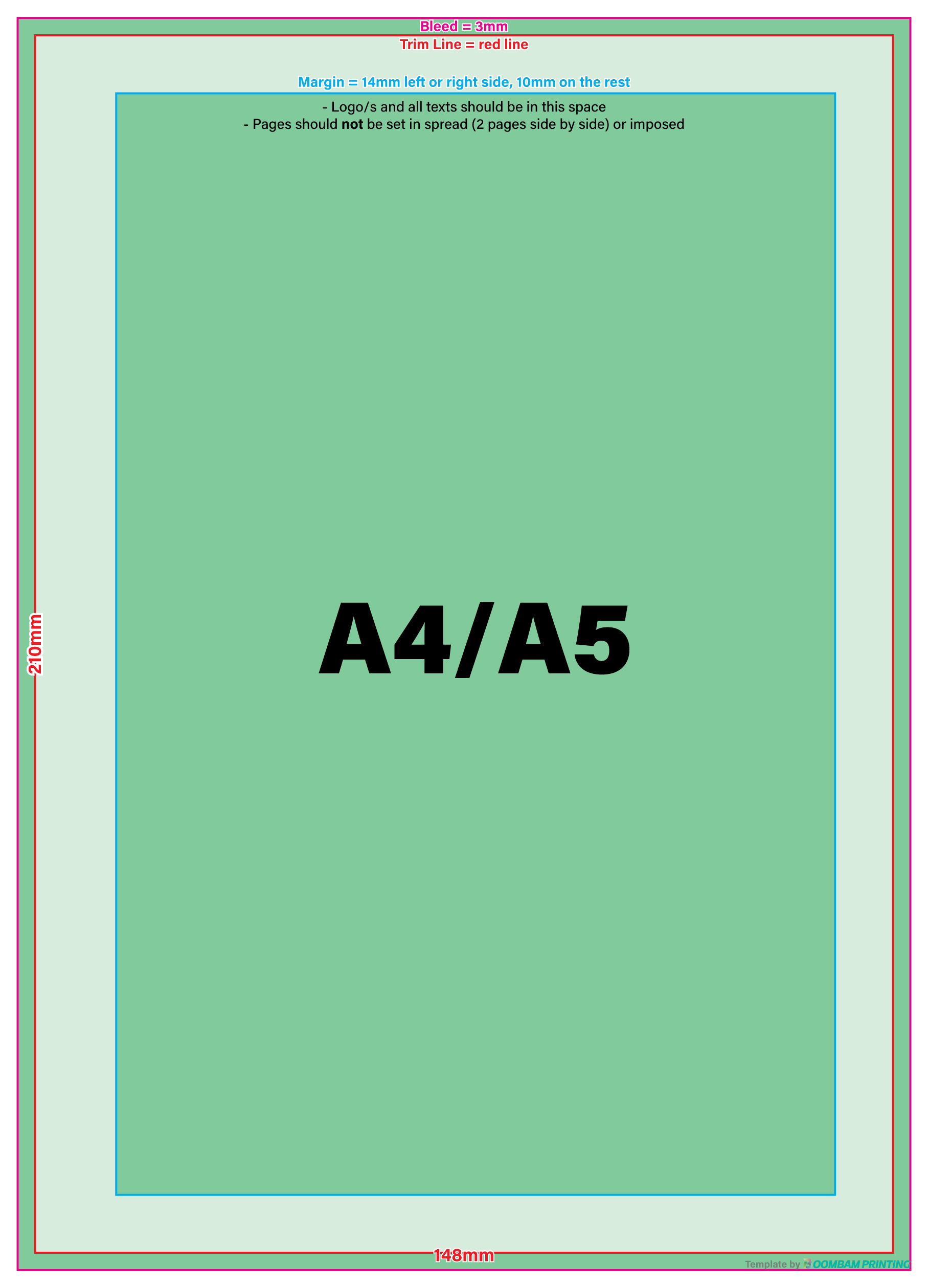
- Please do not set the booklet on spread / imposed / side-by-side.
- When setting up, add 4mm left margin on pages that will be placed on the right side, and 4mm right margin on pages that will be placed on the left side. This ensures enough space for the binders.
We Accept: .pdf | InDesign File (.indd) | Illustrator File (.ai, .eps) | Image Assets: 300 DPI
We Don't Accept: JPEG / JPG, Microsoft Word, Publisher file
Note: If your file is in Microsoft Word or Publisher, export the file to PDF. You can manually add bleed by adjusting the paper size, add 6mm to the length and another 6mm to the width, giving them 3mm bleed on all sides.
(ex: If your page size is an A4, which is 210mm x 297mm, then adjusted size will be 216mm x 303mm)
- In Microsoft Word, it's Layout > Size > More Paper Sizes.
- In Microsoft Publisher, it's Page Design > Size > Page Setup.
Then, adjust the margins accordingly. (ex: If the margin is 8mm, add 3mm for all sides)